With support solutions for the home and office, My Computer Works is here to help you get back to your life.
4 Reasons Your Mac is Not Receiving an AirDrop
Summary
- When the AirDrop feature gets stuck on the waiting error and refuses to connect: It’s usually a minor issue triggering it.
- Bluetooth or Wi-Fi, or both, being off might be the problem: AirDrop needs both your Bluetooth and Wi-Fi turned on, and if one is off or glitching, it will not work properly.
- Personal Hotspot or VPN can get in the way: These additional apps, while still running during an Airdrop, can interfere with connections, so turning them off and trying again often fixes it.
- The settings for your device’s AirDrop can cause a block for your device from connecting: If it is set to Receiving Off or even Contacts Only, then your Mac might not show up for others.
- The distance you have between the devices matters too: If they are too far apart or there are obstacles, the connection can fail, so moving closer usually helps.
If your Mac is stuck on “waiting” when you try to receive a file and refuses to connect, you may wonder why it’s not working as it normally does. But don’t worry, you and many others have experienced this problem. Apple AirDrop not working is a common issue, and it usually shows up as the file never arriving, the transfer not starting, or it just sits there doing nothing.
In most cases, nothing is actually broken, and there are easy ways to solve this problem if you’re looking at how to fix AirDrop when it’s not working. Sometimes, all it takes is some minor settings to fix. Our Team at My Computer Works is going to share our knowledge on the topic today to help you understand the four reasons why your Mac isn’t receiving AirDrop invitations and how to fix it.
Bluetooth or Wi-Fi Is Off
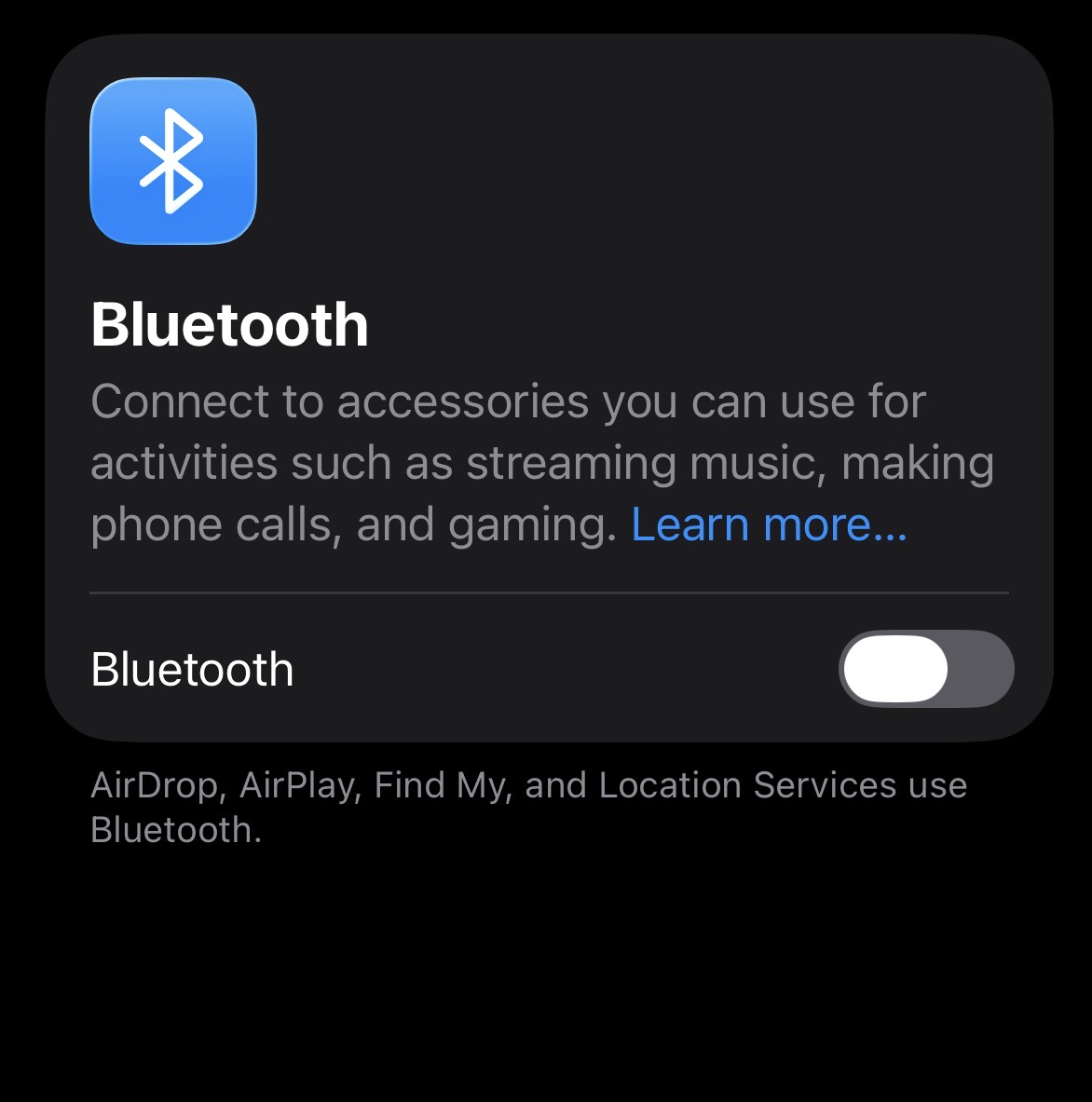
AirDrop needs both Bluetooth and Wi-Fi to be turned on. Bluetooth is used to find nearby devices, and Wi-Fi is used to transfer the file. If either one is off, AirDrop will not work.
On your Mac, check both settings in the menu bar or in System Settings, then turn Bluetooth off. You will need to then wait a few seconds, then turn it back on. Do the same with Wi-Fi. This refresh can fix small connection issues that block AirDrop.
But if you are also having trouble with your internet or network, it could be part of a bigger issue, and in that specific case, this article guide on How to Fix Internet Connectivity Issues can help you troubleshoot further.
Personal Hotspot Is Enabled
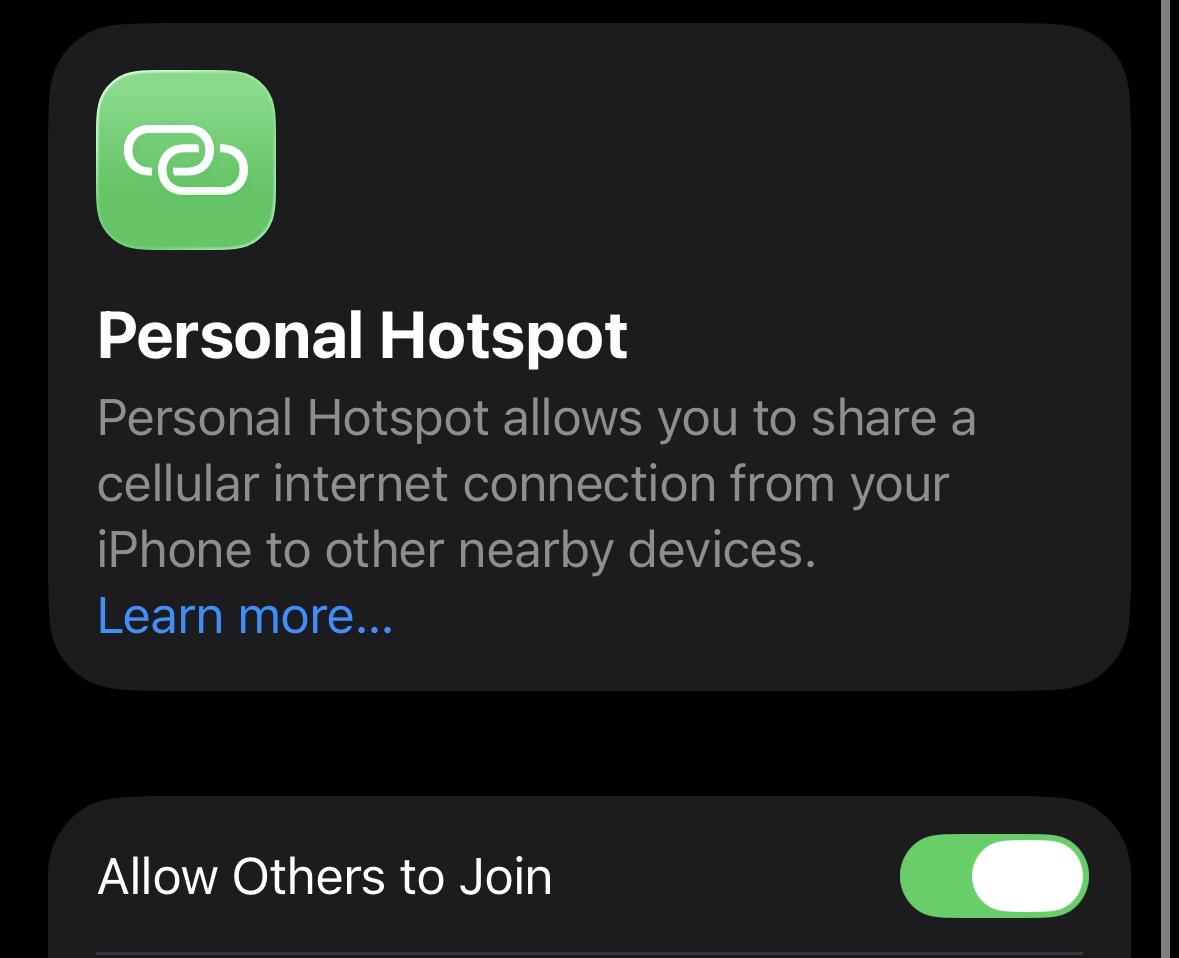
If Personal Hotspot is turned on, it can stop AirDrop from working. This is because your device is using its wireless connection to share the internet, which interferes with how AirDrop connects. So, check both your Mac and the other device. If Personal Hotspot is enabled on either one, turn it off and try again.
VPNs (Virtual Private Networks) can cause similar problems. So, if you are using a VPN, you should try disabling it temporarily while you test AirDrop. Some network setups prevent devices from connecting properly. If you really want to understand this better, this guided article on How to Protect Your WiFi Network explains how different settings can affect connections.
AirDrop Settings Are Incorrect
Your Mac needs to be set to receive files because if it is set to ‘Receiving Off’, other devices will not be able to find it. To check if this setting is turned on, open Finder and click AirDrop in the sidebar. At the bottom of the window, you will see these options: ‘Contacts Only’ or ‘Everyone for 10 Minutes’.
So, if you choose Contacts Only, the sender must be saved in your contacts, and if they are not on your contact list, your Mac will not appear on their device. However, note that if you choose ‘Switching to Everyone for 10 Minutes,’ any nearby device can send files to you.
Devices Are Too Far Apart
If you’ve changed the settings, but are still left asking, “Why has AirDrop stopped working on my phone?” There is one more thing to check, and that’s device distance.
AirDrop uses Bluetooth to detect nearby devices first, so distance actually plays a bigger role than most people expect, and while it’s well known that Bluetooth can technically reach up to around 30 feet, that range is not always reliable in real situations. And this is especially true of things like walls, doors, furniture, and even other devices that can weaken Bluetooth’s signal range.
So even if your devices are not that far apart, the connection can still struggle if something blocks the signal or causes interference, and when that happens, AirDrop might stay stuck on “waiting” or fail to complete the transfer.
If your Mac is not receiving files, try bringing the devices closer together (as close as possible) and, ideally, keeping them in the same room. Also, make sure both devices are on and unlocked, because sometimes one device may have auto-locked during the process, which can cause an error as a result. It is a simple fix, but it is easy to overlook.
Final Thoughts
In most cases like this, the answer to why AirDrop is stuck on “waiting” is usually just a minor setting or connection issue. Essentially, it could be a case of the Bluetooth or Wi-Fi being off, Personal Hotspot interfering, your AirDrop settings not allowing incoming files, or the devices being too far apart.
At My Computer Works, we deal with these kinds of issues regularly. If you have checked everything and it is still not working, it may be worth getting support. You can visit our Help Center for more guidance, or if you’re after a more hands-on approach, you can speak with our team here.