With support solutions for the home and office, My Computer Works is here to help you get back to your life.
How to Clean Up Your C Drive in Minutes
Article Summary
- A full C drive makes things run slower: When there is not enough storage, Windows will take a long time to start up, apps will crash, and updates will fail. That is why it is essential to regularly clean up your device’s storage.
- Windows tools simplify maintenance, and manual cleanup adds extra room: Built-in tools like Storage Sense and Disk Cleanup can automatically or on request delete temporary files and system clutter. Additionally, clearing temporary files, system logs, and other leftover data can quickly free up substantial space.
- Deleting programs you do not use makes a big difference: Getting rid of old or large apps frees up space and improves overall device performance.
- Moving big files helps: To keep things from getting too crowded, you can move photos, videos, installers, and downloads to external drives or cloud storage.
- Ignored areas matter, and regular habits prevent problems: Cleaning out the Downloads folder and emptying the Recycle Bin often frees up more space than you think. Additionally, regularly maintaining storage on your computer keeps it running as it should and reduces the chance that the C drive will fill up again.
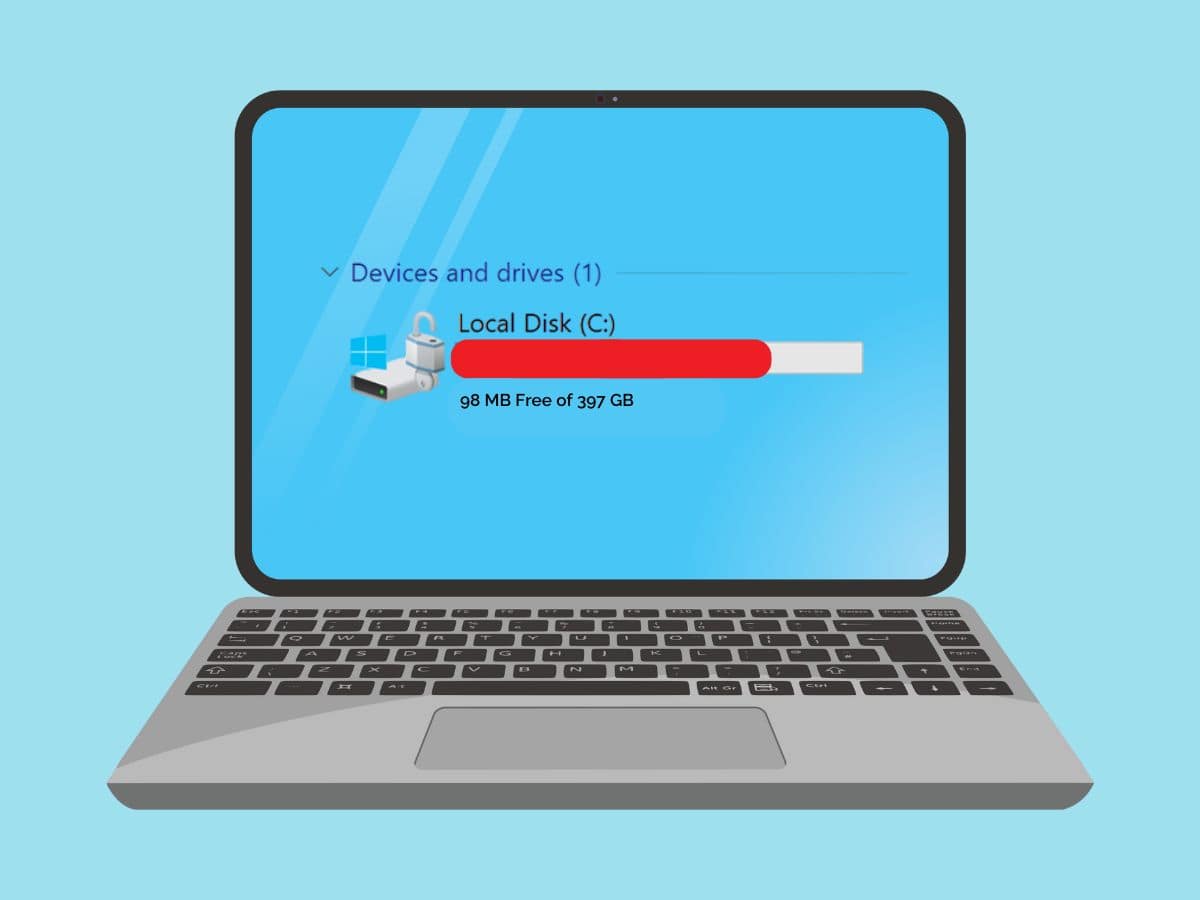
If your computer is running slow, freezing at random times, or not loading apps, it is most likely that your C drive is running out of space. Windows needs free space on your computer to run updates, store temporary files, and perform other daily tasks, and you will find that your computer will slow down quickly when that space is gone.
Fortunately, it is not as hard or as complex as it may seem to figure out how to free up space on the C drive. At My Computer Works, we’re experts at fixing all things computer technology, so we’ve shared how to clean up your C drive in minutes…yes, minutes.
Why Cleaning Your C Drive Matters
Your C drive is basically the main control center. It includes your computer’s operating system, apps, and the files Windows needs to run. When there is not enough space, the system has a hard time creating temporary data, keeping up with updates that might require more space, and maintaining stable performance.
Cleaning your C drive often helps you get more space on the C drive, stops crashes, and keeps everything running smoothly. This means that knowing why your C drive keeps getting full also helps you avoid problems that keep coming back.
Why Is My C Drive Full? Here’s Why
It is essential to know what to delete when the C drive is full and where to look when the problem occurs. However, what’s more important is knowing why it fills up in the first place.
Windows is always making files in the background to keep things running, but it does not always remember to clean up after itself. This means the cause of a full C Drive is usually something normal, like leftover installation files, large downloads, cached data, or temporary files that accumulate over time.
Additionally, even before your computer gives you the C drive full alert, you’ll likely have an idea that the time is nigh to clean it up. For example, Windows may take longer to start up, programs may not open, and updates may fail repeatedly. So, look out for these signs.
Start With Storage Sense (Built Into Windows)
Storage Sense Windows 11 is an automatic cleanup tool that comes with Windows when you purchase it, and it does a lot more than you might think. You can set it to delete old update data and temporary files, and to empty the Recycle Bin on a schedule. To turn it on, go to Settings > System > Storage > Storage Sense.
When you turn on the Windows 11 Storage Sense setting, Windows will take care of itself quietly in the background, so you won’t have to do a thing. It is one of the simplest ways to clean up the C drive in Windows 11 or Clean up the C drive in Windows 10 without having to look for files by hand.
Run Windows Disk Cleanup
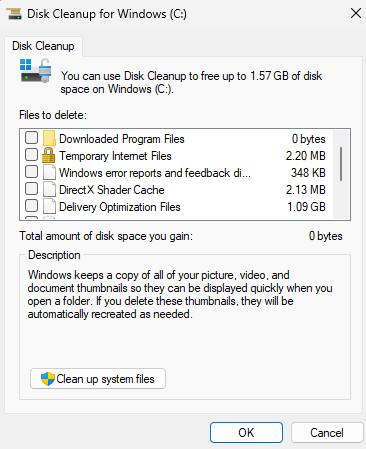
This classic disk cleanup tool for Windows is great for getting a computer’s C drive cleaned up. Here’s how to use Windows Disk Cleanup so you know how to clean the C drive quickly:
- Open the Start Menu.
- Type in “Disk Cleanup.”
- Choose Drive C.
- Pick the things you want to get rid of.
This tool quickly removes cached files, temporary folders, and other files that are no longer needed and are taking up unnecessary space.
Delete Temporary Files Manually
Some temporary files still manage to hide between the cracks and stay on your device, even when you use automated tools. That’s why the Windows manual cleanup menu is so helpful when you need a bit more control.
To remove specific items through Windows storage cleanup, go to Settings > System > Storage > Temporary Files. Windows explains what each file type does, making it easier to understand what you can safely delete and what you may want to keep.
From here, you can clear delivery optimization files, remove old system logs, and tidy up leftover data all in one place. Many people get back gigabytes almost instantly, which is especially useful when you’re trying to figure out how to free up GBs of storage.
Uninstall Programs You Don’t Need
Apps that you do not use are also storage hogs, and you need to be conscious of them as well. You can quite easily use up gigabytes of space with old editing tools, games you forgot about, or trial software.
To uninstall programs you don’t need, go to Settings > Apps > Installed Apps > Sort by Size. In this menu, you can get rid of just a few of the unnecessary big programs, which can make a big difference and help fix full C drive issues faster.
Move Large Files Off the C Drive to Free Space On a Windows PC
Not everything has to stay on your C drive forever. Old downloads, photos, videos, and installers take up a lot of space. Moving them is a great way to free up disk space in Windows without losing anything important.
Some of the alternative storage options you could try are:
- External hard drives: These are great places to keep files in the long term.
- USB sticks: These are conveniently small and can be used easily on the go.
- Cloud storage services: Services like Dropbox, Google Drive, Google Cloud, or OneDrive offer plenty of storage space.
Clear Your Downloads Folder
One of the many reasons why your C drive keeps getting full is the forgotten yet frequently used Downloads folder. It gathers everything from installers to ZIP files, and you have to remember to clean it out often.
Sorting by size as you did earlier often shows you big files that you do not need anymore, and cleaning out this folder on a regular basis keeps your system organized.
Empty the Recycle Bin
A lot of users completely forget about this part. Windows does not really delete a file when you delete it; it just moves it to the Recycle Bin. Until you empty the Recycle Bin, those files will still take up space. So you will need to go into it and do the following:
Right-click on the Recycle Bin, then Empty Recycle Bin in Windows.
This small step can instantly recover valuable space and support your ongoing efforts to maintain free space on your Windows PC.
Alt text: Blue plastic recycling bin with a white recycle symbol on the front.
The Wrap-Up On Cleaning Your C Drive
When you know how to clean up the C drive in minutes, computer storage maintenance becomes surprisingly easy.
What makes it even easier is that Windows provides built-in tools like Storage Sense, Disk Cleanup, and Temporary Files management, all designed to help you maintain a clean system.
However, you still need to keep up with routine habits. This means clearing your Downloads folder and uninstalling unused apps on your C Drive, so your PC stays fast, organized, and far less likely to slow down unexpectedly.
With friendly remote PC repair, reliable Windows 11 help, and fast troubleshooting, My Computer Works is well-equipped to help you clean out your C Drive. You can contact us here, and one of our team members will be in touch to help you.