With support solutions for the home and office, My Computer Works is here to help you get back to your life.
Make Windows 11 Faster in Minutes

Article Summary
- Speed up Windows 11 without new hardware: Most slowdowns come from background apps, cluttered startups, and leftover updates, not from weak computer parts.
- Check what is causing the lag: Open Task Manager and select Performance to find apps using too many resources. Turn off programs that start automatically and run Windows troubleshooters.
- Remove Windows 11 bloatware: Uninstall unused apps such as Teams, Xbox, and Clipchamp, or let My Computer Works safely handle the cleanup for you.
- See real improvements: After removing bloatware and limiting startup apps, most PCs start faster, run smoother, and last longer without hardware upgrades.
- Keep your computer healthy: Update drivers, use Storage Sense to clear old files, and scan for malware often. My Computer Works can also help you tune up your PC and get it running like new.
One of the most annoying things about the technology these days is when your computer seems to be moving more slowly than you are on a Monday morning. If that sounds like something you are experiencing, do not worry; you are not the only one. Your device can still be fixed, and you can still optimize Windows 11 to improve speed.
The experts at My Computer Works know that most of the time, performance slows down because of too many background processes, software clutter, or a bad update. The good news is you do not need new hardware or a degree in IT to speed up Windows 11. You just need to know how to make a few smart changes. Let’s take a look at what you need to learn.
Why Is Windows So Slow?
So, why is Windows 11 slow? If you have been wondering if Windows 11 is slower than Windows 10, the answer is usually only yes because of one or all of these things:
- Background apps: A lot of programs stay open after you launch them, using up memory and CPU power while pretending to sleep.
- Too many apps at startup: Every app wants to be the first to start up, which makes your computer’s startup slow down.
- Old drivers: These small pieces of software let your hardware communicate with your operating system. When they fall behind, their work suffers. Keeping Windows updated also helps, as older versions can run more slowly until performance fixes are released.
- Bloatware: Apps that come with your device that you never asked for can cause performance issues.
How to Check What’s Slowing Down Windows 11
Take a deep breath before you start deleting files like a digital tornado. Let us use the tools that come with Windows to find the problem.
Use Windows 11 Task Manager Performance
To open your computer’s Task Manager, press Ctrl + Shift + Esc.
This tool shows you how your system is performing in real time. Under the Performance tab, you can see how much of your CPU, memory, and disk space is being used.
If any of these stay high even when you are not running heavy programs, it may point to the source of your slowdown.
Here is what to check next:
- Look at the programs that start up: In Task Manager, go to Startup Apps. Turn off anything that does not need to open on its own (sorry, Teams). This will make Windows 11 start up faster right away.
- Use Windows Troubleshooters: Choose Performance from the list of troubleshooters under Settings > System > Troubleshoot. Windows can often find and fix common slowdowns automatically.
- Clean up storage: Go to Settings > System > Storage and turn on Storage Sense to automatically delete temporary files and keep your disk tidy.
- Check for malware: Sometimes a slowdown is caused by more than clutter. Open Windows Security and run a Quick Scan to make sure nothing harmful is running in the background.
These performance steps can help you identify and fix what is making your Windows 11 PC slow before it becomes a bigger problem.
When to Call the Professionals
These steps work for most computers, but if you experience ongoing issues or errors, it may be time to get expert help.
Need Help?
Call (877)629-6972 or visit mycomputerworks.com
Does Windows 11 Have a Lot of Bloatware?
Windows 11 does come with bloatware, as we said earlier. Most people do not need all the extra features (bloatware) that come with Windows 11. Some common offenders are:
- Microsoft Teams.
- Spotify and Clipchamp.
- Disney+, TikTok, and utilities that come with the device.
- OEM utilities such as HP Support Assistant, Dell Update, or Lenovo Vantage run quietly in the background and use extra system resources.
These apps might seem fine to keep, but they can slowly use up your storage, bandwidth, and performance. If you think Windows 11 is slower than Windows 10, bloatware might be the hidden culprit that’s causing you stress.
How to Debloat Windows 11
If you want to get rid of the bloat in Windows 11, you can try these three Windows 11 performance tips right now to make your PC faster in minutes:
Manual Method: Debloating the Old-Fashioned Way
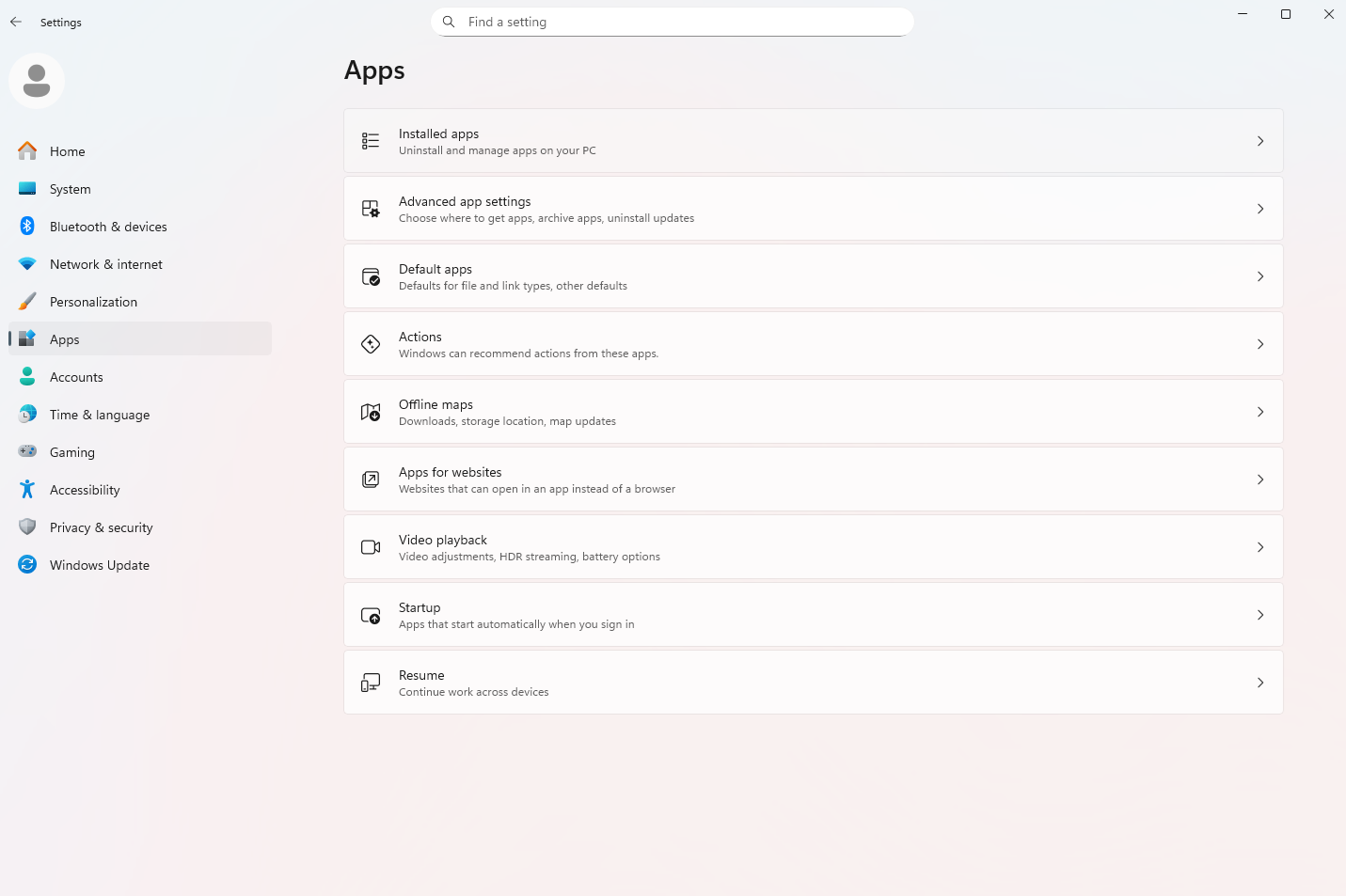
To see what apps you have installed, go to Settings > Apps > Installed Apps. Get rid of anything you do not use, especially trial versions or duplicate tools. You will immediately free up space and resources, improving performance and making your PC faster.
Power User Method: Debloat Windows 11 Safely
Advanced users can use PowerShell scripts to debloat Windows 11 safely. But be careful: if you delete the wrong thing, your system might go crazy. So be careful, as a Windows 11 running slow fix, that you try to make your PC faster; could backfire and take hours to resolve.
Professional Method: Let Experts Handle It
Sometimes getting rid of bloatware is better left to the experts. Our tech experts know which programs you can safely uninstall and which ones keep your computer running smoothly. We can safely and quickly remove Windows 11 bloatware, so you do not accidentally delete something important.
How Much of a Difference Does Debloating Make?
Once you delete unused programs, turn off apps that start automatically, and clear out temporary files, you will usually begin to see results fast. Your computer will load faster, respond more smoothly, and handle everyday tasks without slowing you down.
These small changes really do add up. You often do not need to buy new hardware to notice a difference. With a few simple adjustments, you can get faster startups, quicker app launches, and smoother multitasking. Many of our clients are surprised to see how much better Windows 11 performs after a proper cleanup.
If you still feel like your computer is lagging, that is where we can help even more. Sometimes the next step is upgrading your hardware (even though this is not always needed) to match the improvements you have made in software. For example, switching from a traditional hard drive to a solid-state drive (SSD) can make your computer feel brand new. If you would like to learn more ways to boost speed and performance, reach out to us at My Computer Works, and we will walk you through the process.
Final Word
To fix a slow PC using Windows 11 in minutes is usually more straightforward than you think, as you now know. At the end of the day, you can make Windows 11 faster and more reliable by cleaning it up, changing some settings, and maybe getting some help from an expert.
If you think your digital decluttering task is too challenging or you don’t have time (which is the case for many of us), My Computer Works can help. Our team can fix your system’s performance problems and get it running like new again. Contact My Computer Works today and give your computer the help it needs to perform faster and better.