With support solutions for the home and office, My Computer Works is here to help you get back to your life.
Meta Is Removing Messenger from Windows and Mac — Here’s What Happens Next

Article Summary
- Messenger desktop apps are ending soon: In December 2025, Meta will officially end support for the Messenger apps for Windows and Mac. This will be the end of the Meta Messenger Desktop App.
- Messenger is still working: The shutdown only affects desktop apps. Users can still chat through the Facebook Messenger Web Version or on their phones.
- Save your chats: To safely back up your Messenger chats, use Messenger Data Export to download your messages and attachments.
- Make sure your information is safe: Before the deadline, turn on Secure Storage Messenger and set a PIN for extra security.
- Look into other options: The desktop apps for Messenger on both Windows and macOS will be discontinued, and users will be redirected to Messenger via browser once the shutdown date passes. So, you might want to try WhatsApp, Instagram DMs, or Meta Business Suite instead.
Not to be dramatic, but soon the desktop Meta Messenger app will be like a house plant that’s been forgotten to be watered, slowly withering and dying. This is because Meta has officially stopped supporting the native apps on Windows and macOS.
What’s more, Meta is retiring its native Messenger apps for Windows and macOS. The official date for the Meta Messenger desktop app shutdown is December 15, 2025. This means both versions will stop functioning entirely. However, don’t panic and take a deep breath, as this doesn’t mean the service is going away.
You’ll still be able to chat using the Facebook Messenger Web Version or on your phone. In this blog, My Computer Works has helped you get all your ducks in a row by detailing what’s changing, how to secure your Messenger chats, the alternatives you should consider, and what happens next.
Is Messenger Shutting Down?
So, “Is Messenger going to shut down completely?” As you now know, Meta Messenger in December 2025 is shutting down….well, sort of, but not entirely.” This is not the end of Messenger as a whole; it’s just the end of the Meta Messenger Desktop App, as we already mentioned. Your account, message history, contacts, and groups will still be there.
The shutdown is happening now because Meta aims to have fewer separate desktop apps, more consistent experiences across web and mobile, and to focus more on making Messenger, Instagram, Threads, and WhatsApp work together. This move is part of the trend toward these products having more features in common. That’s the real-world reason why Messenger for Windows will be discontinued and Messenger for Mac will be removed.
What’s Changing for Messenger Users
The biggest Meta App change in 2025 is the location of the Messenger app, and that there is no longer a native taskbar icon, a startup launch option, or built-in OS notifications, since everything will now run through your browser instead. Before, you could use Alt-Tab to switch to a separate Messenger window. Now, after the cutoff in December, you’ll use Messenger in your browser. This means that the “app” is now a pinned tab or a separate window in your browser.
For Windows and Mac users who like to do more than one thing at once, the change is small. All you need to do is make a separate window for Messenger, pin it, and turn on desktop notifications. You can still send voice notes, drop files, and manage group threads. You’ll just do it in a tab that works a lot like the old desktop application.
Additionally, depending on your preferences, you can also “install” Messenger as a progressive web app (PWA) from your browser (Chrome, Edge, or Safari). This recreates a desktop-like icon and window, but it’s technically a browser-based app.
Will Your Messages Still Be Saved?
With Messenger for Desktop being shut down, it’s only natural to wonder if your messages will be saved. But take comfort in knowing your messages don’t live inside the desktop app. This means they’re tied to your Facebook account, meaning you won’t lose your conversations, photos, or attachments when the app disappears. However, a few local preferences, such as notification sounds or window sizes, may be reset.
With that said, if you depend on Messenger for ongoing professional chats or long-term collaborations, we recommend double-checking that everything appears correctly when you log in to the web version before the cutoff date. The web version has improved over the years, now offering quick access, pop-up notifications, and smooth device syncing. Once you adjust, you’ll barely miss the old desktop application.
How to Check If Messenger Backups Are Enabled and Secure Messenger Data
Before the Meta Messenger desktop app shuts down on December 15, 2025, make sure your chats are safely backed up and protected.
Log in to Messenger.com or Facebook.com/messages to confirm your messages are synced. Then, export a copy of your conversations using Messenger Data Export, especially if you use Messenger for client or work discussions.
How to Back Up Your Chats
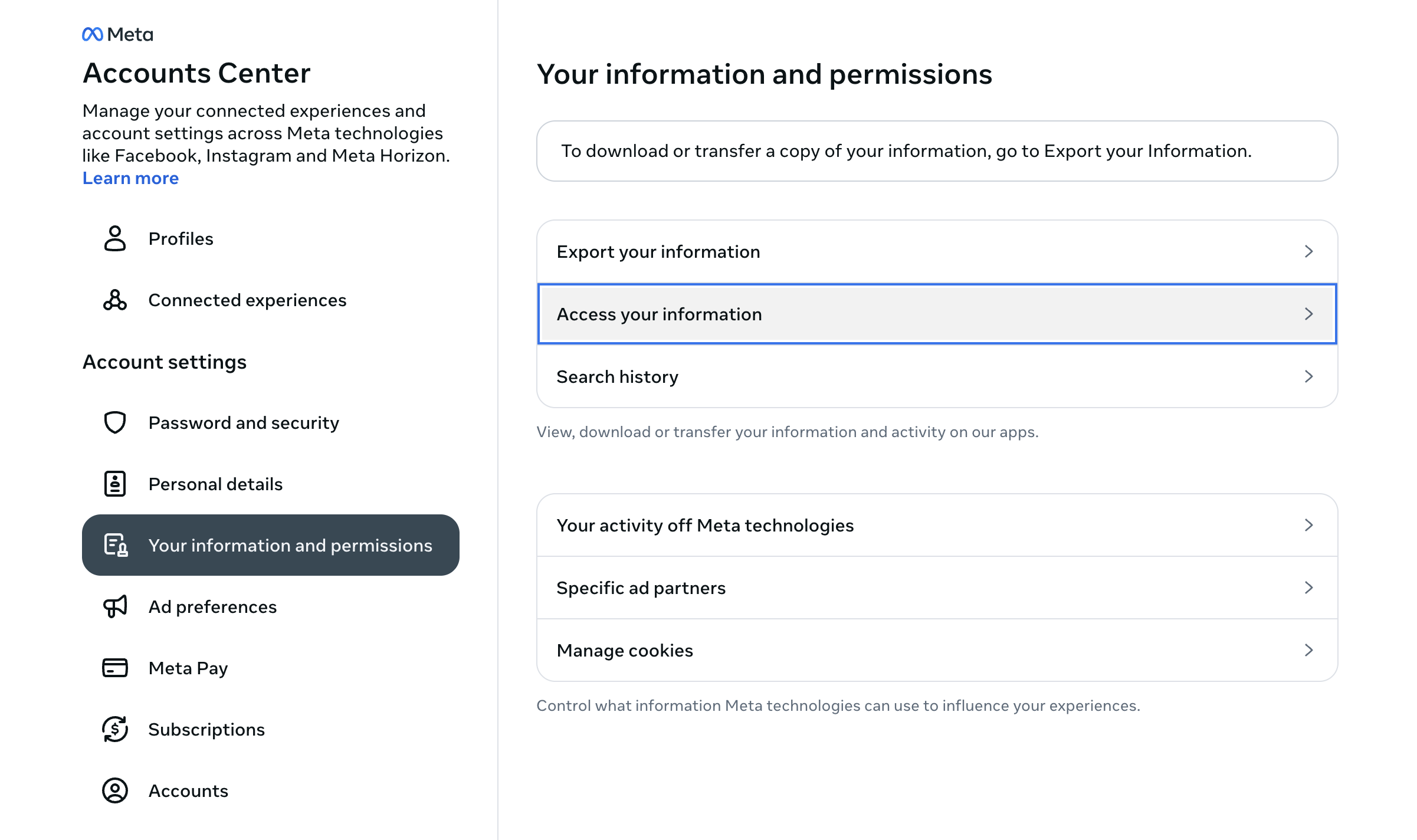
Go to Facebook > Settings & Privacy > Settings > Accounts Center > Your Information & Permissions > Get your information. Choose Messages, then export them (you can set a date range or select “all time” to save everything).
Add Secure Message Storage (PIN):
Visit Messenger.com, click your profile, and navigate to Privacy & Safety > Encrypted chats from start to finish > Message storage > Make a PIN. This enables Secure Storage Messenger, which encrypts your chats for added protection.
It’s really that easy. As transitions like this often attract scams, watch for fake “Messenger Support” messages asking you to reinstall the app or reverify your login. Meta will never request your credentials by email.
To strengthen your digital security even further, save this guide: How to Safeguard Your Digital Identity on the Internet. It aligns with these steps and helps keep your online accounts secure.
What Alternatives Are Available?
You still have options if you like having a separate window and tray icon and are disappointed that the Messenger app is shutting down. The web experience within Meta’s ecosystem is surprisingly strong, and you can create an app-like setup using a separate browser window or a Progressive Web App shortcut, as mentioned earlier.
If privacy is a concern or you need to talk to people outside of Facebook, WhatsApp Desktop/Web offers strong end-to-end encryption, synced typing across devices, and easy file sharing. Instagram DMs are another convenient space for creator groups and brands to connect, especially as Meta continues to integrate features across its platforms.
If you manage multiple public channels, Meta Business Suite’s unified inbox can bring together messages from Facebook, Instagram, and, in some cases, WhatsApp into one place. This helps with customer support, community management, and scheduling content without switching between apps.
Outside of Meta, there are plenty of Messenger alternatives such as Signal, Telegram, and others. Each has its own approach to encryption, admin tools, and data export. The right choice often depends on where your contacts are and what level of security or compliance you need to maintain.
Final Word
The Meta Messenger desktop app shutdown is part of that natural cycle, and it doesn’t mean you’re losing your conversations; it just means they’re changing where they’re stored and how you access them. If you need help saving data or want to switch to another app-based messenger on your PC, you can speak with us at My Computer Works today. We know nearly everything there is to know about the app shutdown and alternatives you can try.