With support solutions for the home and office, My Computer Works is here to help you get back to your life.
What is Stolen Device Protection iOS 26.4
Article Summary
- iOS 26.4 Stolen Device Protection: Stolen Device Protection adds an extra wall of protection through biometric passes. Now, Face or Touch ID is required for sensitive actions.
- Why the feature was added: This security feature was added to combat a phone-theft tactic called “Shoulder Surfing,” where the criminal would watch users enter a password before stealing the device.
- What the feature does: The Stolen Device Protection feature adds a security layer that helps prevent account takeover, financial fraud, and identity theft if the device is stolen.
- Stolen Device Protection default setting: In iOS 26.4, this feature is now auto-enabled, but users must still set it up for it to work correctly.
We are now living in a world where smartphones are so deeply integrated into our daily lives that they are, in essence, an extension of ourselves. A lot of our personal and sensitive information is stored on our phones, which means passwords, financial accounts, payment methods, and other personal data can be accessed from a single device.
Because of this, phone theft has become a gateway for criminals to access sensitive information. Apple introduced Stolen Device Protection through an iOS update designed to help prevent criminals from accessing sensitive information on a stolen device.
This is a scary development, so it’s important to learn more about how this feature helps. So, today our team at My Computer Works is discussing the iPhone’s Stolen Device Protection feature and how it protects you better than just a single password ever could.
Stolen Device Protection Is Now the Default for iPhones Using iOS 26.4
The Stolen Device Protection feature is a security feature that has been built into iOS in order to protect sensitive settings and financial or account information. Sensitive settings usually refer to those in financial tools, digital wallets, device security controls, and password vaults.
This feature is usually enabled by default as part of iPhone security in iOS 26, but it still requires you to set up your biometric fingerprint and face ID to work effectively.
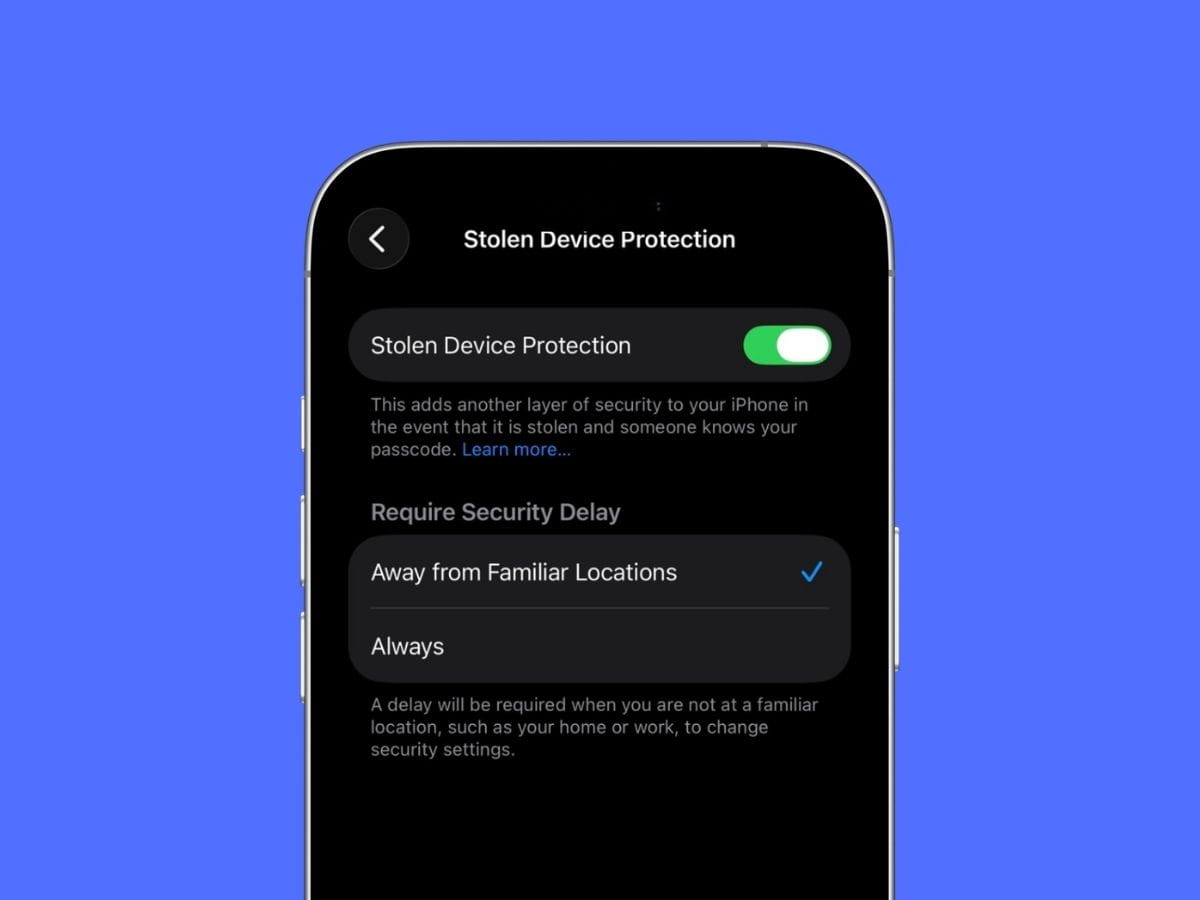
Go to Settings > Face ID & Passcode > Stolen Device Protection, then choose Always if you want biometric authentication required even when you are in familiar locations. Follow the prompts, and that’s it.
Why Apple Implemented This Feature
There is this term called “Shoulder Surfing,” and it has nothing to do with ocean waves. Shoulder surfing is a theft tactic in which thieves actively watch their target to memorize the password the victim uses to access the device. Once they steal the device, they key in the memorized password to unlock it.
In the past, all you needed to change account settings or access sensitive information was the device’s password. That is no longer the case. Apple implemented iOS Stolen Device Protection in order to stop these tactics, and with it, even if the thief has your password, they won’t be able to access what matters most on the device.
Actions That Require Face ID Or Touch ID
When this feature is active, certain actions on your device will require authentication before they can be accessed or completed. These are some of the actions that now require biometric verification to access, supported by Touch ID, Face ID, and Stolen Device Protection:
- Using and viewing passwords or passkeys stored in iCloud Keychain.
- Applying for a new Apple Card.
- Viewing an Apple Card virtual card number.
- Turning off Lost Mode.
- Erasing all content and settings.
- Taking certain Apple Cash or Savings actions in the Wallet app.
- Using your iPhone to set up a new Apple device.
In some cases, Stolen Device Protection may also introduce a security delay before allowing sensitive account changes when the iPhone is away from familiar locations.

Why This Matters for iPhone Users
The Stolen Device Protection feature in iOS 26.4 matters because it helps reduce the risk of your information and phone being stolen, as having this in place may discourage theft entirely.
All in all, the additional layer of protection provided by these stolen iPhone security settings helps reduce the risk of financial fraud, account takeovers, identity theft, and permanent data loss after physical theft.
What Users Should Know Going Forward
To pull everything together, Stolen Device Protection works best when your biometric settings are enabled and properly configured.
Understanding how these features work going forward can be helpful for anyone wondering how to protect an iPhone if stolen, and it highlights why Apple continues to introduce stronger iPhone security features.
If you want to make the most of these protections, here are a few simple steps to keep in mind:
- Enable Stolen Device Protection in your iPhone security settings so sensitive actions require biometric authentication.
- Use Face ID or Touch ID whenever possible and avoid relying solely on a passcode for important account changes.
- Keep Find My iPhone turned on, which helps locate, lock, or erase a device if it is lost or stolen.
And the best part about it all is that for everyday use, this feature doesn’t seem to interfere with the user experience. Its only trigger is when a user attempts to perform an action that requires access to something sensitive. For the most part, it remains an unnoticeable feature, serving as your silent protector.
The Wrap-Up
iPhones are best known for their excellent security, and the Stolen Device Protection feature in iOS 26.4 only solidifies that reputation. This security feature adds extra protection that is much needed now more than ever, given how clever criminals are becoming.
If you need help configuring this setting, our team at My Computer Works can help you. We offer reliable remote tech support for anyone in the US. Contact us and a friendly technician will happily assist you with any questions you might have.